
How To Play FunScripts With Your Handy (Step-By-Step Guide)
So you’ve gotten your new Handy toy, and you’re ready to load up some scripts to sync with your favorite audio or video.
Now what?
Although it may seem complicated, loading up scripts is actually quite simple once you get the hang of it.
In this guide, I’ll be showing you step-by-step how to play funscript files, both on desktop and mobile.
Let’s get started!
Loading Funscripts On Desktop
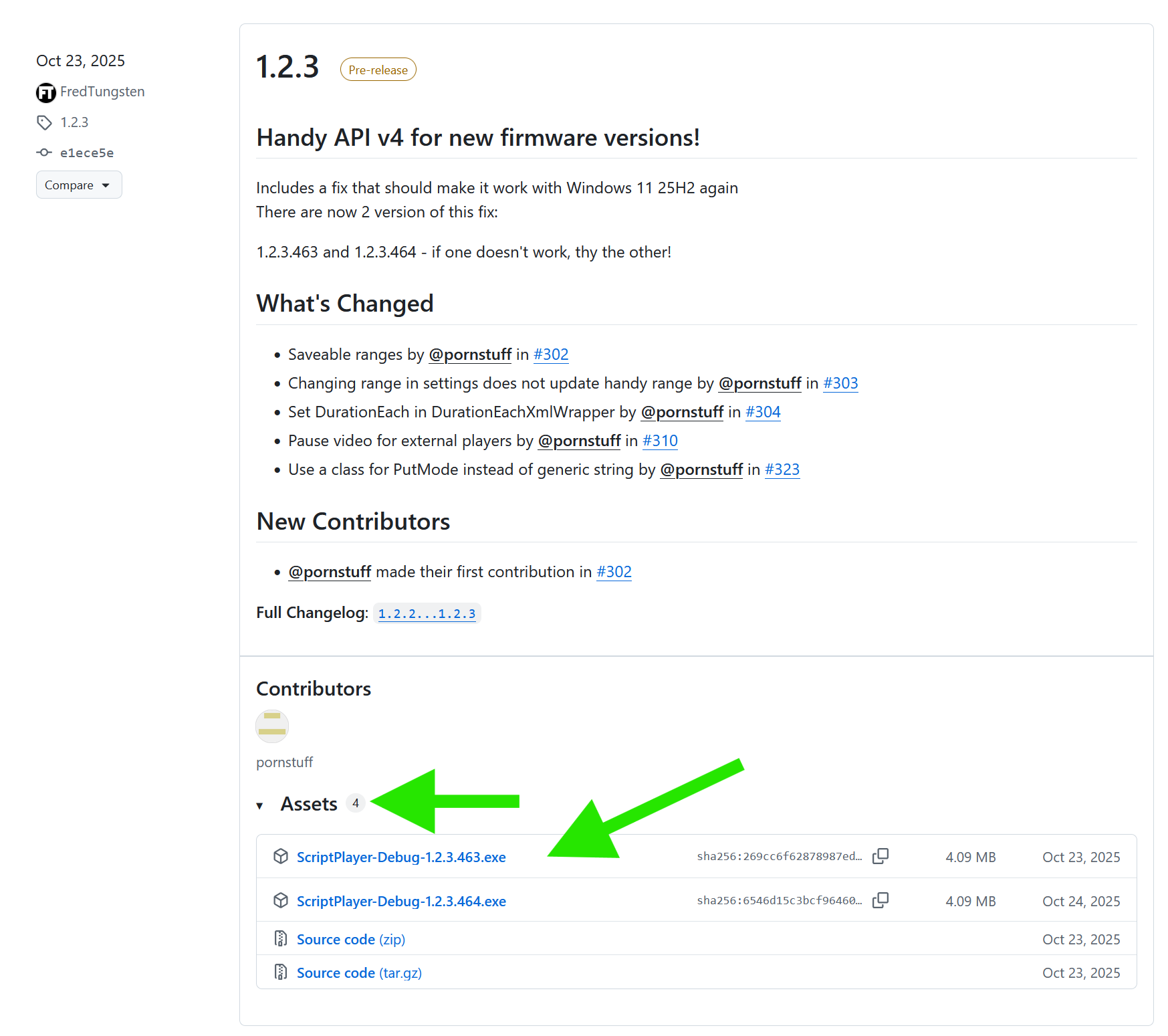
On desktop, by far the most powerful software available for playing funscripts is ScriptPlayer, which you can download by clicking here.
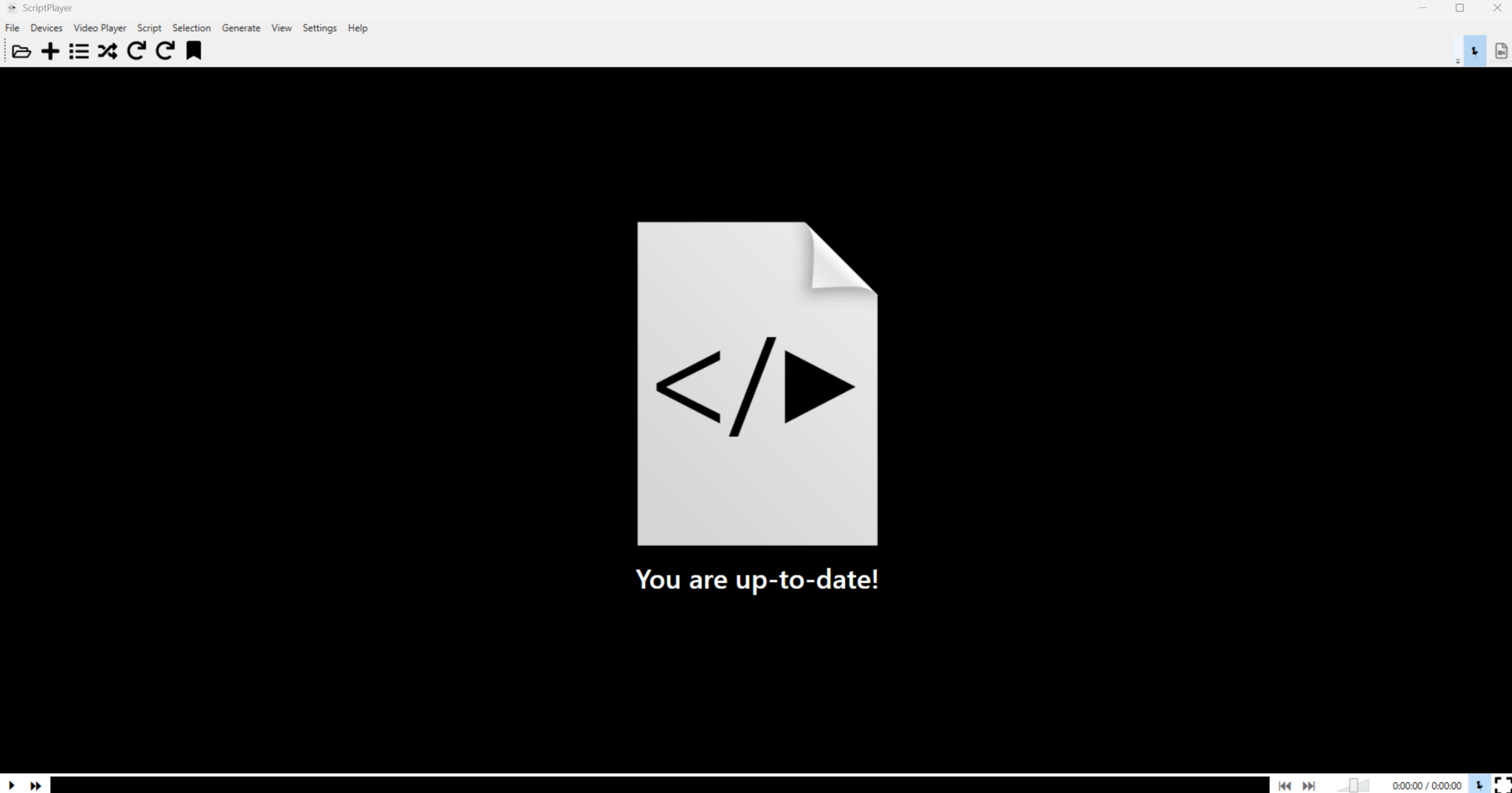
Once it downloads, open up and install the software. Once it launches, you’ll get something like this:
Connecting The Handy To The Internet
Before you can play funscripts, you will need to connect your Handy device to the internet. Thankfully, you only need to do this once, but it can be a little daunting if you’ve never done it before!
First, plug your Handy device in, and turn it on using the power button.
Then, visit Handy’s official onboarding page by clicking here, and follow the on-screen instructions.
Once you’ve completed the onboarding and you’re connected to the internet, you’re just about done! Note down any ‘connection key’ that the onboarding page gives you – this is what will allow you to connect to other apps and websites.
Before stepping away from your internet browser, I recommend boomarking the Handyverse configuration page here.
This is where you will go if you need to update or revert the firmware on your Handy, for any reason.
Connecting ScriptPlayer To Your Handy
Once you have your connection key, you’re ready to set up ScriptPlayer!
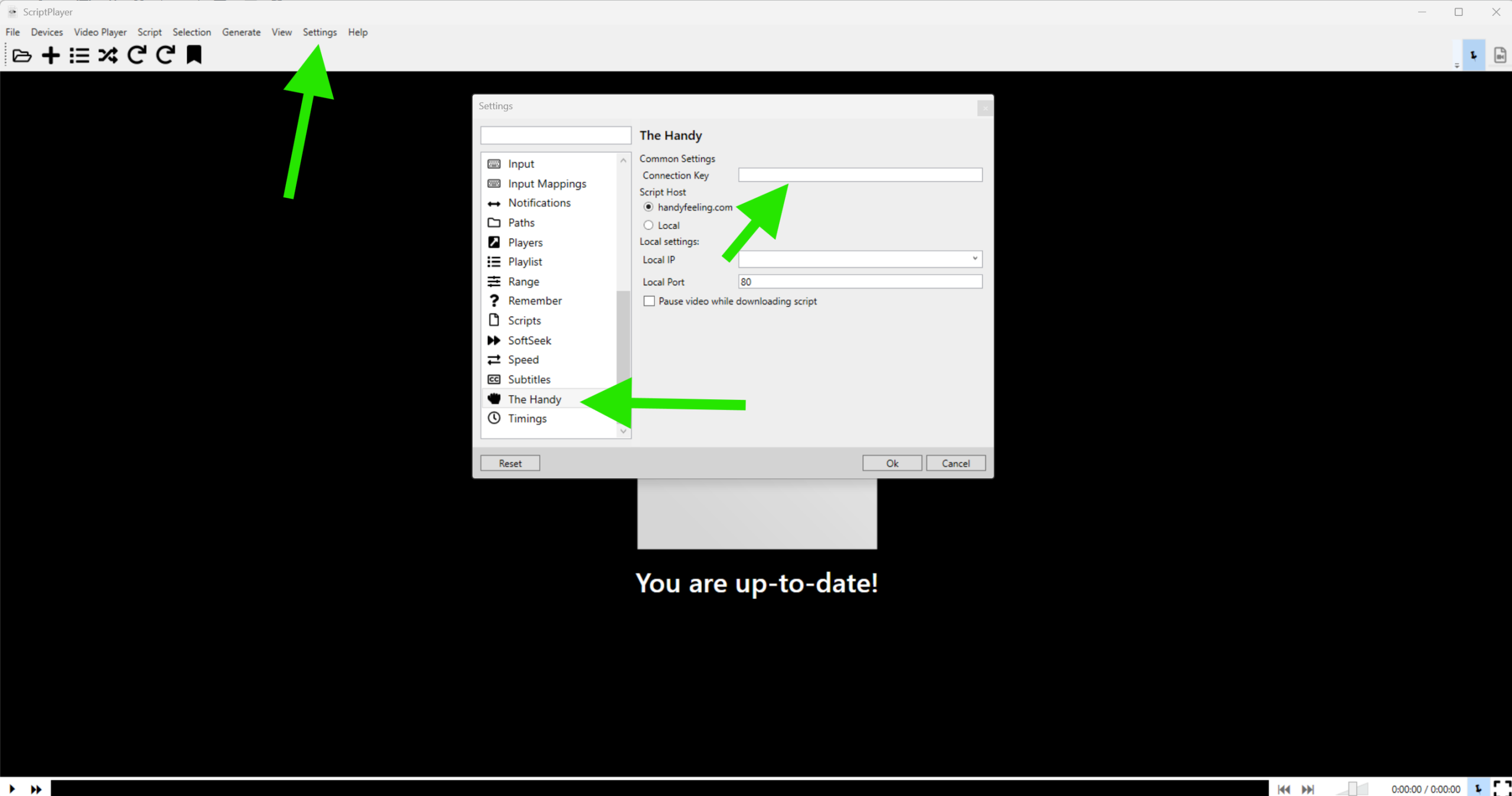
Like the previous step, you should only have to do this once.
To start:
1. Click the ‘Settings’ button in the top navigation bar.
2. On the left-hand side, click on ‘The Handy.’
3. Add your connection key in the box that says ‘Connection Key.’ Leave the rest of the information as default, but make sure ‘Handyfeeling.com’ is selected as the script host.
4. Click okay.
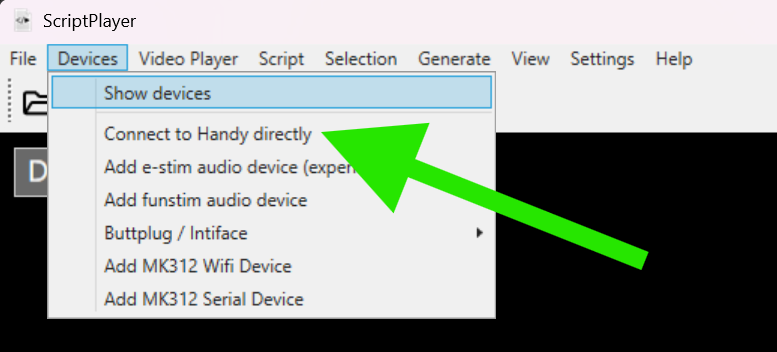
Once that’s done, click on ‘Devices’ and then ‘Connect to Handy directly.’
Scriptplayer should automatically connect, and you’ll see a little box pop up that says it connected successfully!
Playing Files
Once your device is connected, you’re ready to load a file!
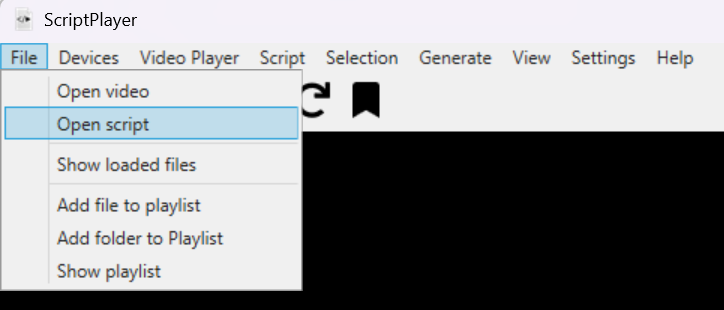
To play a file, you will need both the video (or audio) file, as well as the funscript downloaded to your computer.
You can load these in either order, either by clicking ‘Open video’ or ‘Open script.’
Tip: If both the media and the funscript file are in the same folder, and they both have the same file name, loading one will automatically load the other!
Adjusting Latency
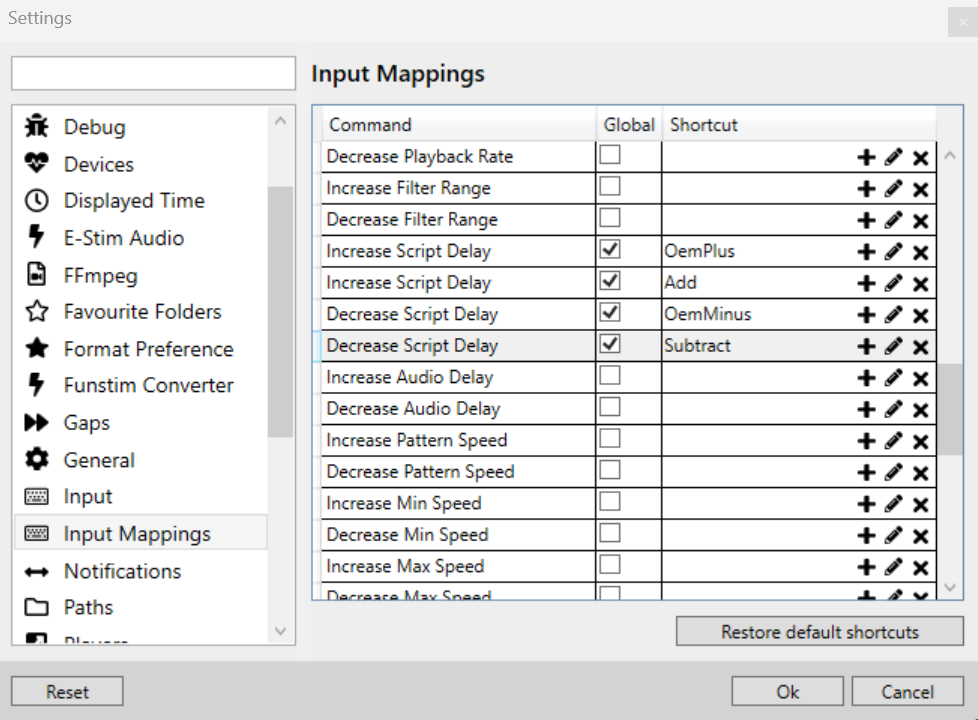
If you find that your funscripts don’t seem to be perfectly in sync – they either move too fast, or there’s a delay, don’t worry!
One thing that make ScriptPlayer so great is that you can adjust this down to the millisecond.
By default, the keys that do this are + (to increase delay) and – (to decrease it.)
However, you can change these to anything you wish by going to Settings -> Input Mappings, and then clicking the pencil icon next to any option.
Pretty neat!
Loading Funscripts On Mobile
Although mobile doesn’t provide an experience quite as smooth or seamless as desktop, it is hugely convenient to be able to load funscripts on your phone.
To start, you’ll need to download the onboarding app to connect your Handy to the internet.
If you are exclusively using iOS, you can download their onboarding app here.
If you’re on Android, click here instead.
Like on desktop, the app will generate a connection key for you to use with other apps or websites.
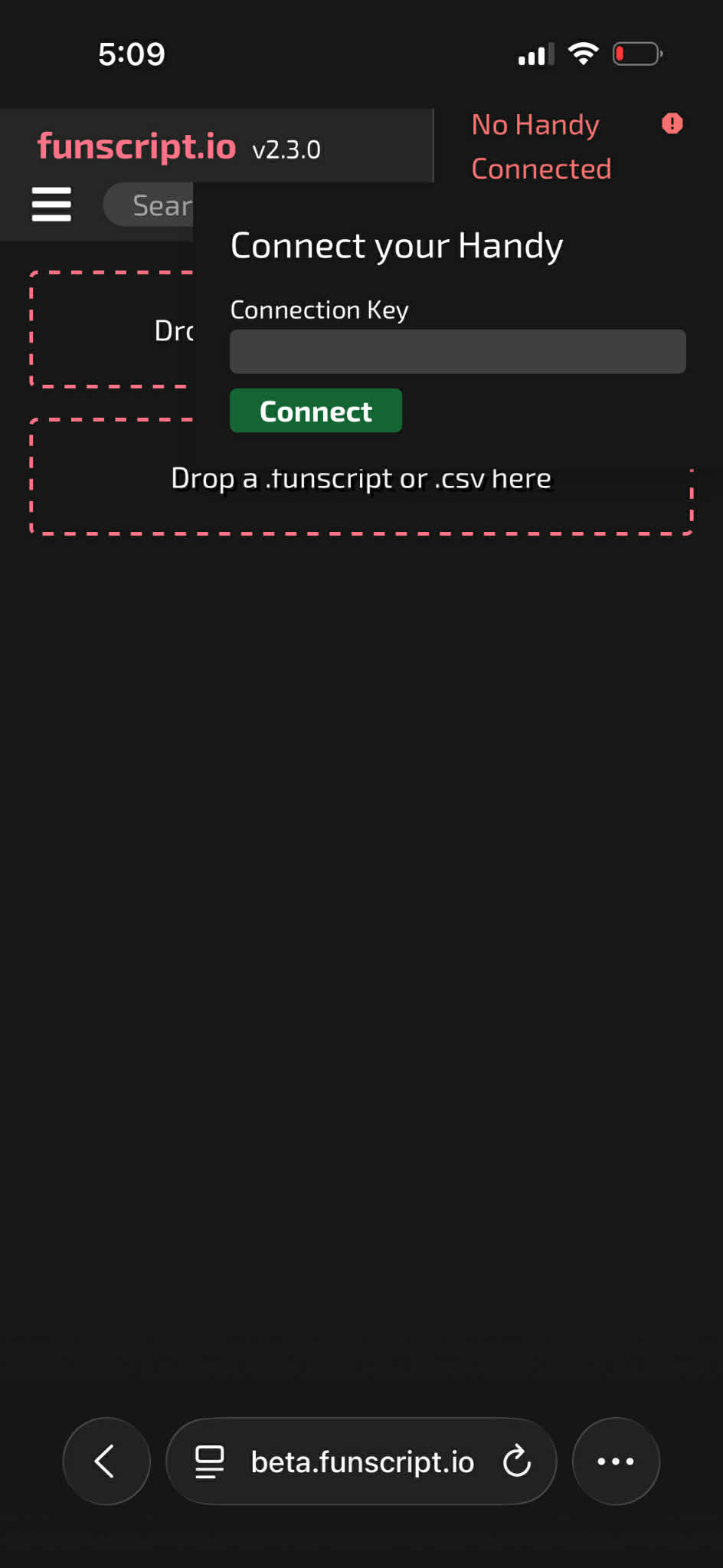
While dedicated apps are available, they tend to cost money, so most people use free websites like Beta.Funscript.io and Funscriptplayer.com.
These almost all work the same – connect your Handy to the website using the connection key, then load your media and funscript by tapping on the dedicated sections.
Note that this won’t actually upload your videos to their server, but it does allow the video to play in your browser.
Like on desktop, you will need to have both the media and your funscript downloaded to your device to play them.
That’s one thing that’s convenient about Lewd Lexi’s audio roleplays. Since they’re audio, the file sizes are small!
Closing Thoughts
Because most of the time is spent during one-time setup, playing scripts back is pretty fast once you do it the first time.
All you need is to select the media and funscript file, and you’re good to go!
If you are looking for extremely immersive audio content that actually has a real plot and immersive acting, consider checking out Lewd Lexi’s audios.
She releases 4 new funscripts monthly, along with over 20 new audio roleplays for you to enjoy. It’s a level of immersion you simply can’t reach with regular porn alone. Listening to them with funscripts has been the most immersive virtual sex experience of my life!
Anyway, I hope you found this guide helpful, and if there’s any area that you’re stuck on, let me know and I’ll be happy to help!
~ Majora